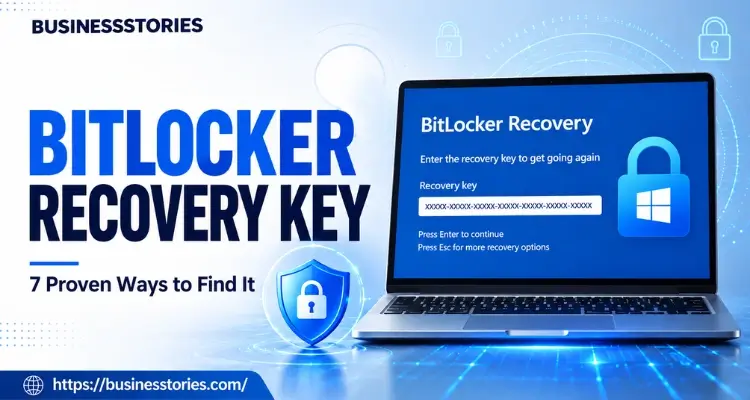
You turn on your laptop. But instead of your desktop, you see a blue screen. It asks for a long number you have never seen before. Your heart sinks. Where on earth is that code? Take a breath. In most cases, your BitLocker recovery key is saved somewhere you can reach in a few minutes. You just need to know where to look.
This listicle walks you through seven proven ways to find it.
- First, we explain what the key is and why Windows asks for it.
- Then we cover each method, step by step.
- Finally, we show you how to back it up so you’re never surprised by the key again.
What Is a BitLocker Recovery Key, and Why Does Windows Ask for It?
BitLocker is the tool Windows uses to lock up the data on your drive. It scrambles your files. So if someone steals your laptop, they can’t read a thing.
Most days, BitLocker works quietly in the background. Your PC unlocks the drive on its own when you start it. But occasionally Windows senses a change it doesn’t trust. At that point, it stops and asks for proof that you are the owner.
That proof is the BitLocker recovery key. According to Microsoft, it is a 48-digit number that lets you get back into your drive.
Why the Recovery Screen Suddenly Shows Up
So what makes BitLocker ask? Common triggers include a new motherboard, a BIOS reset, or a firmware update. Even a normal Windows update can do it.
For example, in October 2025, Microsoft warned that its security updates could send some PCs into BitLocker recovery. Most of those were Intel PCs with Modern Standby. As Petri reported, users had to type the key once. Thereafter, the PC started as normal.
Many People Have BitLocker On Without Knowing It
Here’s the twist. Lots of users never turned BitLocker on at all. Starting with Windows 11 version 24H2, a clean install turns on device encryption by default. It does this when you sign in with a Microsoft account. In addition, many new laptops ship this way.
Millions of people now possess an encrypted drive and a key they have never seen as a result. So if you are confused right now, you are not alone.
Know Your Key ID First
Before you start hunting, look closely at the recovery screen. It shows a recovery key ID. Write down its first eight characters. Why? Because you may have several keys saved. The ID tells you which one matches this drive.
Find Your BitLocker Recovery Key on a Personal PC: Ways 1 to 4
Let’s start with the places where most home users store their key. Try these in order. Most people find their BitLocker recovery key at step one.
Way 1: Check Your Microsoft Account
This is the most common spot. When you set up Windows with a Microsoft account, it often backs up your BitLocker recovery key for you.
Here’s how to check:
- Grab another device, like your phone or a second computer.
- Go to aka.ms/myrecoverykey in a web browser.
- Sign in with your Microsoft account.
- Find the key ID that matches the one on your screen.
- Type the 48-digit key into your locked PC.
This method saved many people during the 2024 CrowdStrike outage. As GovInfoSecurity noted, many users could grab their keys by logging in from their phones.
Way 2: Check a Different Microsoft Account
Didn’t see a key? Don’t give up yet. This is the step most guides skip.
The key lives in the account that set up the PC, not always in your own. So think back. Did a partner, parent, or shop technician set up your laptop? If so, the key may sit in their account. Furthermore, try any old email you used years ago.
Here’s a helpful clue. On Windows 11 24H2 and later, the recovery screen shows a hint of the linked Microsoft account. Use that hint to pick the right login.
Way 3: Look on a USB Drive or in a Text File
When you turned on BitLocker, you may have saved the key to a USB stick. In that case, plug the stick into your locked PC and follow the prompts.
Alternatively, the key may be in a text file. It usually has a name like BitLocker Recovery Key followed by a long ID. Open that file on another device to read it.
Way 4: Search for a Printed Copy
Some people print the key during setup. So check your desk drawers and files. Look in the folder where you keep receipts or warranty papers. The printout shows both the key ID and the key itself.
Ways 5 to 7: Command Line, Work Accounts, and IT Teams
Next, let’s cover methods for tech-savvy users and work devices. These are especially useful for small business owners.
Way 5: Use Command Prompt While Your PC Still Works
This one is a bit different. It only works when you can still get into Windows. However, it’s the smartest step to take before trouble starts.
- Click Start and type “cmd”.
- Right-click Command Prompt and choose Run as administrator.
- Type manage-bde -protectors -get C: and press Enter.
- Look for the line called Numerical Password. That is your recovery key.
The Microsoft Learn guide explains this command in detail. Furthermore, change the letter C to check other drives.
Way 6: Check Your Work or School Account
Did you ever sign in to the PC with a work or school email? Then your key may be in that account instead.
- On another device, go to aka.ms/aadrecoverykey.
- Sign in with your work or school account.
- Select Devices and open the locked device.
- Choose View BitLocker Keys and match the key ID.
Way 7: Ask Your IT Admin
If your company manages your PC, your IT team likely has the key. They can find it in tools like Active Directory, Microsoft Entra ID, or Microsoft Intune. Just send them the key ID from your screen. Then they can read the matching key back to you.
Are you the admin? In that case, open the device in the Intune admin center and look for its recovery keys. In Active Directory, open the computer’s properties and select the BitLocker Recovery tab instead.
For example, during the July 2024 CrowdStrike outage, about 8.5 million Windows devices crashed. Microsoft’s repair tool needed a BitLocker key for each one. Firms that had stored their keys in one place recovered faster.
Meanwhile, the rest faced slow, hands-on fixes, as Directions on Microsoft found.
What If You Still Can’t Find Your BitLocker Recovery Key?
Sadly, sometimes a BitLocker recovery key is truly gone. So let’s be honest about your choices.
No One Can Make a New Key for You
First, know this. Microsoft Support can’t find, give, or remake a lost key. That’s the whole point of encryption. If anyone could bypass it, thieves could too.
So be careful with “unlock tools” online. After the CrowdStrike outage, the US cyber agency CISA warned that criminals were using the chaos for phishing attacks. Likewise, fake “BitLocker experts” may offer to unlock your drive for a fee. Avoid them.
Double-Check the Key You Typed
Before you panic, make sure the key really is wrong. Often, it’s a simple typing slip. The 48 digits come in eight groups of six. So enter them slowly, one group at a time.
Furthermore, verify that the key ID matches. If you have three PCs, you may have three keys in your account. Picking the wrong one is very common.
Here’s a handy tip. On some recovery screens, the number keys may not respond. If that happens, use the function keys instead. F1 to F9 stand for 1 to 9, and F10 stands for 0.
Undo Recent Changes
Next, consider what changed just before the screen appeared. Did you reset the BIOS or swap a part? If so, reverse it and restart. Sometimes that alone brings back the normal startup.
Reset as a Last Resort
If nothing works, you can reset your PC with the Windows recovery options. But be warned. A reset removes all your files. You’ll get a working PC back, but not your data.
Is it only an external drive that’s locked? Then relax a little. Your PC still works fine, and the main drive is safe. You just can’t open the files on that one drive.
That’s why the next section matters most.
How to Back Up Your BitLocker Recovery Key the Smart Way
Here’s a simple truth. The best time to find your BitLocker recovery key is before you need it. So take five minutes today.
Do the Two-Minute Check
First, grab your phone and visit aka.ms/myrecoverykey. Can you see a key for each PC you own? If yes, great. If not, run the Command Prompt method from Way 5 while your PC still works.
Think of it like a fire drill. You don’t want to learn the exits during the fire.
Save a Fresh Copy From Control Panel
Next, save a new copy while you can still sign in. Open the Control Panel and go to BitLocker Drive Encryption. Then click Back up your recovery key. Windows will let you save it to your account, save it to a file, or print it.
On Windows 11 Home, the menu looks a little different. So search for ‘Device encryption’ in Settings instead. From there, you can open the BitLocker options and back up your key.
Follow the Two-Place Rule
Next, keep your key in at least two places. For instance, keep one copy in your Microsoft account. Then keep a second copy offline, like a printout or a note in a safe.
Most importantly, never store the only copy on the same drive it unlocks. If the drive becomes locked, the copy stored on it will also be inaccessible.
Tips for Small Business Owners
Do you run a small team? Then make a simple list of every device and its key ID. Store it in a secure password manager that only trusted staff can open.
Additionally, please review the list each time you add or replace a laptop. Remember the CrowdStrike lesson. Firms with organized keys bounced back in hours, while others took days.
Finally, check your key list again after any big change. A new motherboard or a fresh Windows install can create a new BitLocker recovery key. So the old one may no longer work.
Conclusion
Seeing a BitLocker screen can feel scary. But now you know it’s usually a quick fix, not a disaster.
To recap, your BitLocker recovery key is a 48-digit code that unlocks your drive. First, note the key ID on your screen. Then check your Microsoft account at aka.ms/myrecoverykey. If it’s not there, try the account that set up your PC.
Thereafter, search for a USB stick, a text file, or a printout. For work devices, check your work account or ask your IT team. If your PC is still operational, please consider using the Command Prompt to view the key at this time.
Above all, remember one thing. Microsoft can’t remake a lost key, and a reset wipes your files. So the real win is getting ready before trouble hits.
Furthermore, don’t wait for the next surprise update. Updates in 2025 sent many PCs into recovery with no warning. So you never know when it will happen to you. Then again, with your key safe in two places, a surprise blue screen becomes a small speed bump.
Here’s your next step: Open aka.ms/myrecoverykey on your phone today. Make sure every device has a key. Then save a second copy offline. It takes five minutes, and it could save years of photos and files.
Frequently Asked Questions
1. Where can I find my BitLocker recovery key without a Microsoft login?
Check a USB drive, a saved text file, or a printout from setup. If your PC still works, run the manage-bde command. For work devices, your IT admin can usually find the key for you.
2. Can I bypass the BitLocker recovery key screen without the 48 digits?
No safe bypass exists. That’s what keeps thieves out. However, undoing a recent BIOS or hardware change may stop the prompt. Otherwise, your only choice is to reset the PC, which deletes your files.
3. Why does my laptop keep asking for a BitLocker recovery key code?
Repeat prompts often follow firmware updates, BIOS changes, or Windows update bugs. First, enter the key once and restart. If it keeps happening, update your BIOS and check BitLocker settings, or ask your IT team.
4. Is the BitLocker recovery key ID the same as the actual recovery key?
No. The key ID is a short label shown on the recovery screen. It only helps you pick the right key. The actual recovery key is a separate 48-digit number that truly unlocks your drive.
5. How do I back up my BitLocker recovery key on Windows 11 the safe way?
Open the Control Panel and select BitLocker Drive Encryption. Then, choose to back up your recovery key. Save it to your Microsoft account, and also print a copy. Keep at least one copy away from the PC.

System Architect & Web Designer with 15+ years of cross-industry experience delivering scalable IT and innovative digital solutions.