
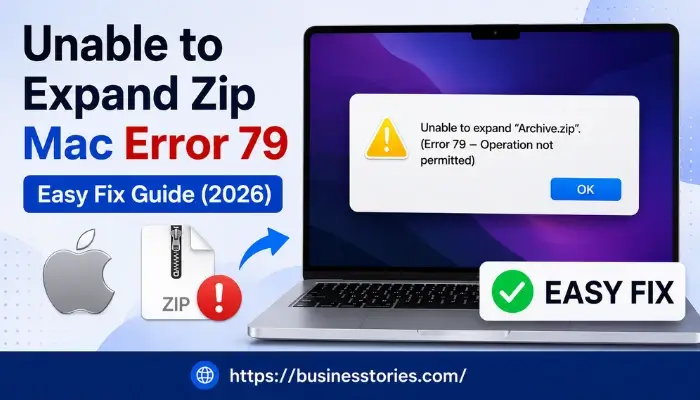
If you see the “unable to expand zip Mac error 79“ when you try to open a zip file on your Mac, the archive may be incomplete, damaged, mislabeled, or incompatible with the Archive Utility. Extraction may fail due to file permissions or lack of storage space.
The excellent news is that usually you can resolve the problem without deleting important files or using complicated software. First, please download the ZIP file again. If the archive does not work, try to extract it with Terminal, verify the file format and permissions, or use a trusted archive tool.
Quick fix: Download the ZIP file again and attempt to open it. If you still get Error 79, try extracting the archive using Terminal and check if the file is a valid ZIP file. The following steps start with the simplest fixes and move to advanced troubleshooting techniques.
What Does “Unable to Expand ZIP Error 79” Mean on Mac?
When you double-click a ZIP file on a Mac, the Archive Utility built into OS X attempts to extract its contents. You may get an “Unable to expand” message with Error 79 if macOS isn’t able to read or process the archive properly.
In simple terms, the error usually signifies that Archive Utility doesn’t know how to handle the file. It may be incomplete, corrupt, unsupported, wrongly labelled with the wrong extension, or otherwise broken with extraction.
So, for example, the file extension might be “.zip“ but the actual file format could be different. In other cases, the download may have been interrupted before the entire archive was downloaded to your Mac. The solution depends upon what is causing the problem.
Common Causes of Error 79 on Mac
Several issues can prevent a ZIP file from expanding correctly. The most common possibilities include:
- Incomplete download: The ZIP file may not have downloaded fully because of a connection problem or interrupted transfer.
- Damaged archive: The file may have become corrupted during creation, upload, download, or storage.
- Unsupported or mislabelled format: A file with a .zip extension may actually use another archive format that Archive Utility cannot process correctly.
- Archive compatibility issues: Some archives created with different compression tools or settings may not extract properly with the built-in macOS utility.
- File permission problems: Your user account may not have sufficient permission to read, move, or extract the archive.
- Insufficient storage space: Your Mac needs enough free space for the extracted files, which may require significantly more room than the compressed ZIP file itself.
- Software-related issues: In some cases, a macOS or Archive Utility problem may interfere with extraction.
Once you identify the likely cause, start with the simplest fix: download the ZIP file again from the source. If the error persists, proceed to the troubleshooting methods below.
How to Fix “Unable to Expand ZIP” Error 79 on Mac
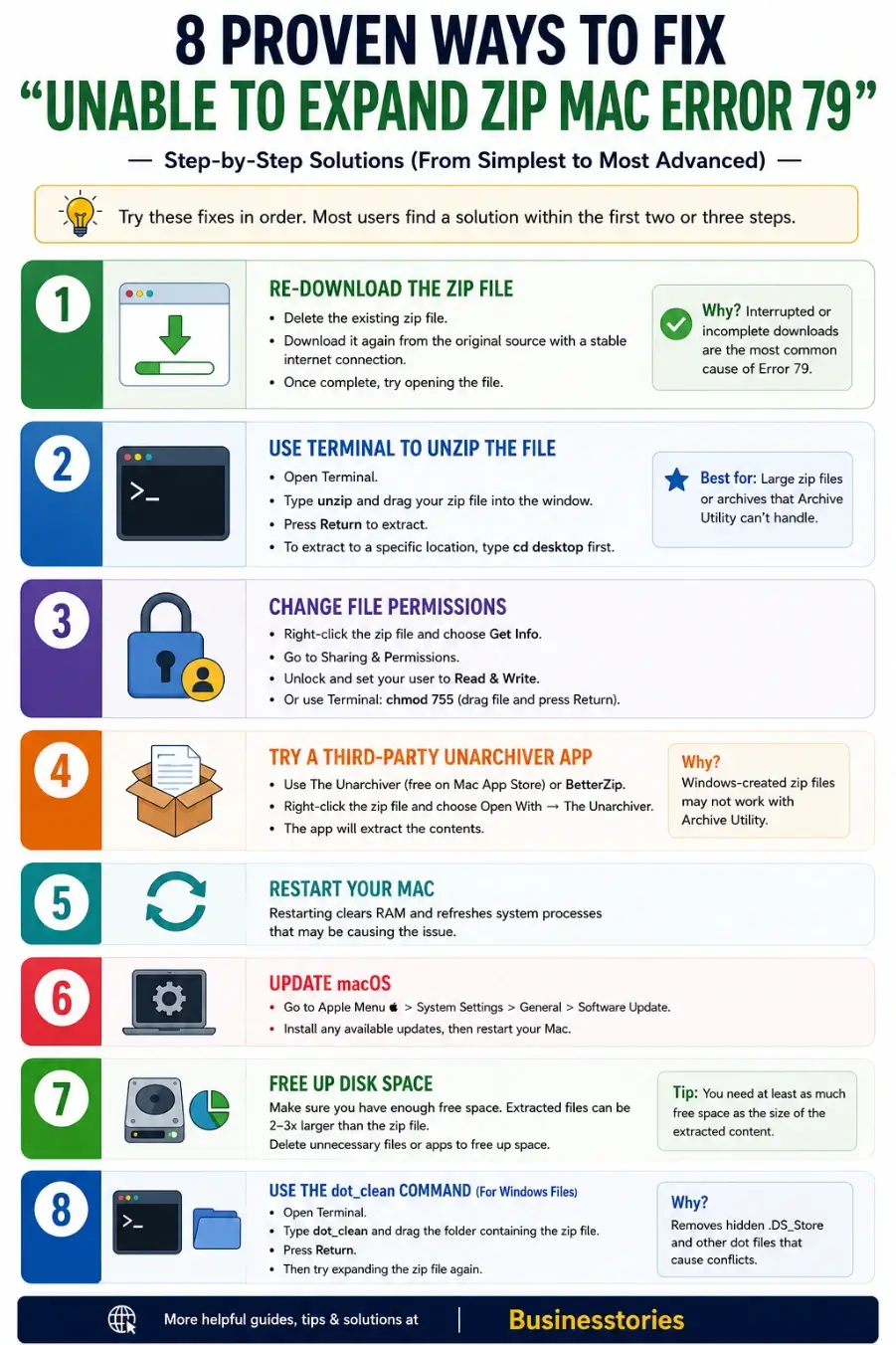
Start with the simplest fixes below and move to the more advanced methods only if the error continues. Often, re-downloading the archive or using Terminal is enough to identify or resolve the problem.
Fix 1: Download the ZIP File Again
The Archive Utility may fail to read the ZIP file correctly if it is not completely downloaded or if it is corrupted. This can happen if the download was interrupted or the file didn’t upload properly.
Try these steps:
- Delete the ZIP file that is showing Error 79.
- Return to the original website, email, cloud folder, or trusted source.
- Download the file again.
- Wait until the download is fully complete.
- Double-click the new ZIP file and try to extract it.
If possible, compare the file size with the source. A noticeably smaller downloaded file may indicate that the transfer was incomplete.
If the newly downloaded copy still fails, continue to the next method.
Fix 2: Use Terminal to Extract the ZIP File
If Archive Utility fails to unzip the file, try extracting it with Terminal. This method can be successful where a graphical extraction tool fails. Terminal may also provide a more specific error message that can help determine if the archive is damaged or unsupported.
Follow these steps:
- Press Command + Space to open Spotlight.
- Type Terminal and press Return.
- Type the following command, and then press the space bar:
unzip
- Drag the ZIP file from the Finder into the Terminal window. This automatically inserts the file path.
- Press Return.
The command should look similar to this:
unzip /Users/yourname/Downloads/example.zip
If extraction is successful, the terminal will extract the archive, and if it does not work, read the error message carefully. If there are messages about missing data, invalid archive structure, or unsupported format, then that can help identify the next step.
Important: Terminal does not automatically repair a genuinely corrupted ZIP file. Its main advantage is that it provides another extraction method and may show clearer diagnostic information.
Fix 3: Check Whether the File Is Actually a Valid ZIP Archive
A file may have an extension of .zip but not be a valid ZIP archive. It could be another archive type, a renamed file, or a partial download.
You can inspect the file type using Terminal:
- Open Terminal.
- Type the following command followed by a space:
file
- Drag the archive into the Terminal window.
- Press Return.
For example:
file /Users/yourname/Downloads/example.zip
Terminal will report what it can identify about the file. If the result suggests that the file is not a ZIP archive, use a compatible extraction tool or download the correct file again from the source.
Fix 4: Check File Permissions
Your Mac may be unable to extract an archive if your user account does not have the required access permissions.
To verify permissions:
- Select the ZIP file in Finder.
- Press Command + I or right-click the file and choose Get Info.
- Scroll to Sharing & Permissions.
- Check whether your account has Read & Write access.
If the settings are locked, click the lock icon and authenticate with an administrator account before making changes.
Only change permissions for files you trust and are authorized to access.
Fix 5: Try a Trusted Archive App
If Archive Utility still doesn’t open the file, you might need a third-party archive app because it may support compression methods or archive formats that the built-in macOS tool doesn’t handle as expected. Select a well-known archiving utility and download it from the official developer or another trusted source. Then try opening the archive with that app.
This method is particularly useful when:
- The file is not a standard ZIP archive.
- The archive uses a compression method that causes compatibility problems;
- The archive utility fails, but the archive itself is still valid.
Avoid downloading unknown extraction tools from untrusted websites.
Fix 6: Check Available Storage Space
A compressed ZIP file may require much more space after extraction. For example, a relatively small archive can contain several gigabytes of uncompressed data.
To check available storage:
- Open System Settings.
- Go to General > Storage.
- Review the available space on your Mac.
- Remove or move unnecessary files if storage is very low.
- Try extracting the ZIP file again.
Also, empty the trash if it contains large files you no longer need.
Fix 7: Restart Your Mac and Install Available macOS Updates
A restart can clear temporary system issues that may interfere with file operations. If the problem continues, please check if a macOS update is available.
First, restart your Mac and try opening the ZIP file again.
To check for updates:
- Open System Settings.
- Go to General > Software Update.
- Install an available update if appropriate for your Mac.
- Restart when required.
- Try extracting the archive again.
Updating macOS is not a guaranteed fix for Error 79, but it can resolve software bugs and compatibility issues in some cases.
Fix 8: Ask for a New Copy of the Archive
If none of the methods above work, the ZIP file itself may be damaged or incorrectly created.
If someone sent you the file, please ask them to do the following:
- Create the ZIP archive again;
- Verify that it opens successfully before sending.
- Upload or transfer a fresh copy.
If you downloaded the file from a website, try downloading it from the source again or contact the site owner if every copy fails.
A genuinely damaged archive may not be recoverable through normal extraction methods.
How to Prevent “Unable to Expand ZIP” Error 79 on Mac
You cannot prevent every archive error, especially when a file is already damaged before you receive it. However, a few practical habits can reduce common extraction problems:
- Download files from reliable sources: Use the original website, sender, or trusted cloud location whenever possible.
- Wait for downloads to finish: Do not open or move a ZIP file before the transfer is complete.
- Keep enough free storage space: Extracted files can require much more space than the compressed archive.
- Verify the archive format: A file ending in .zip may not always be a valid ZIP archive.
- Keep macOS reasonably up to date: System updates can include bug fixes and compatibility improvements.
- Use trusted archive tools when needed: If Archive Utility cannot handle a valid archive, another established extraction tool may support the format or compression method.
- Test important archives before sharing them: If you create a ZIP file, try opening it before sending or uploading it.
These steps cannot guarantee that Error 79 will never appear, but they can reduce problems caused by incomplete downloads, low storage, unsupported formats, and damaged transfers.
Conclusion
The “Unable to Expand ZIP” error 79 on Mac generally means that Archive Utility has problems with the archive. The file may be incomplete, corrupted, mislabeled, unsupported, or another extraction issue occurred.
Start again by downloading the ZIP file. If it still doesn’t work, try extracting it with Terminal; check the actual file type, permissions, and available storage, or use a trusted archive app. If none of these methods work, ask for a newly created copy of the archive.
The key is to identify whether the problem comes from your Mac or from the archive itself. Once you know that, choosing the right fix becomes much easier.
FAQs: Unable to Expand Zip Mac Error 79
Q1. What does Error 79 mean when expanding a ZIP file on Mac?
macOS fails to process archives, causing Error 79. The file may be incomplete, damaged, unsupported, or misidentified as a ZIP archive.
Q2. Why am I unable to expand a ZIP file I just downloaded?
Files may be incomplete or damaged at the source. Extract the new file after downloading and waiting for the transfer.
Q3. Can Terminal fix error 79 on Mac?
Terminal provides another way to extract a ZIP file and may show a more specific error message than Archive Utility. However, it does not automatically repair a genuinely corrupted archive.
Q4. How do I unzip a file using Terminal on a Mac?
Open Terminal, type “unzip” followed by a space, drag the ZIP file into the Terminal window, and press Return. Dragging the file into Terminal automatically inserts its path.
Q5. How can I verify whether a file is really a ZIP archive?
Open Terminal, type “file” followed by a space, drag the archive into the Terminal window, and press Return. The result can help identify the actual file type.
Q6. Is it safe to use a third-party archive app on Mac?
An official developer or trusted third-party archive app may work. Check the developer, download source, and permissions before installing software.
Q7. Does Error 79 mean the ZIP file is permanently damaged?
Not necessarily. Problems may include incomplete downloads, unsupported formats, mislabeled files, low storage, or permission issues. Requesting or downloading an archive may help.
Q8. What should I do if none of the fixes work?
Request that the sender create and test a new archive before sending again. If multiple downloads fail, contact the site owner or download the file again.

Tabassum Shaik is an Author, Researcher, and SEO Specialist with over 8 years of experience creating informative content on business, startups, entrepreneurship, marketing, technology, and digital trends. She specializes in researching industry trends and transforming complex topics into practical, easy-to-understand insights. Her goal is to help readers stay informed, learn new ideas, and make better business decisions.