If you own a small business or offer local services, you have probably heard about Google Business Profile (formerly Google My Business). How to create a Google Business Profile that actually helps customers find you? This guide will teach you everything, step by step.
A Google Business Profile is your free digital storefront on Google Search and Google Maps. It shows your business name, address, phone number, website, hours, photos, and customer reviews. All in one place.
For local businesses, a Google Business Profile is often the first thing potential customers see. In fact, Google reports that customers are 2.7 times more likely to view businesses with complete profiles as reputable.
This beginner-friendly guide will walk you through the entire process, from setting up your account to optimizing every section for maximum visibility. Moreover, you will discover proven strategies that successful businesses use to stand out in local search results. Best of all, the entire setup is completely free. Let’s begin immediately.
What Is a Google Business Profile, and Why Do You Need One?
Before we dive into the setup process, it helps to understand what a Google Business Profile actually is. Simply put, it is a free tool from Google that lets you manage how your business appears on Google Search and Google Maps.
When someone searches for your business name or for services you offer in your area, your profile can appear in a prominent panel on the right side of the search results, often called the Knowledge Panel. It also appears in Google Maps searches, so customers can find you while driving.
Now, you might wonder: why is this profile so important?
First, it dramatically improves your local SEO. Google uses the information in your profile. This includes your business category, location, and customer reviews to decide whether to show your business when someone searches for related terms. In other words, a well-optimized profile increases your chances of appearing in the Local Pack, the top three business listings that appear at the very top of search results.
Second, your profile builds trust. Customers today read reviews before they visit a business. In fact, a report from BrightLocal shows that 76% of consumers ‘always’ or ‘regularly’ read online reviews when searching for local businesses. By having a complete profile with photos, accurate hours, and genuine customer feedback, you signal that your business is legitimate and customer-focused.
On top of that, the profile allows you to post updates, offers, and events directly to your listing. It gives you a free marketing channel that reaches people exactly when they are looking for your services. As a result, your profile is not just a directory listing; it is a powerful lead-generation tool that works around the clock.
Prerequisites: What You Need Before You Start
Before you begin creating your profile, you should gather a few essential things. This preparation saves time and ensures that your profile looks professional from day one.
First and foremost, you need a Google account. If you already use Gmail, Google Drive, or YouTube, you can use that same account. However, many business owners prefer to create a dedicated Google account to manage their business profile, especially if multiple team members will need access later.
Next, you need accurate business information. Specifically, you should have your exact business name as you want it to appear publicly. Your physical address (or service area if you operate from home). A local phone number. Your business website URL and your regular operating hours.
Furthermore, you should also know your primary business category. This is crucial because Google uses it to determine which searches your profile appears in. According to Google’s own guidelines, choosing the most specific category available is better than choosing a broad one. For instance, select ‘Indian Restaurant’ rather than just ‘Restaurant’ if it matches your business.
Prepare high-quality images of your business in addition to the essentials. Research by Google shows that businesses with photos receive 42% more requests for driving directions and 35% more clicks through to their websites. So, take clear, well-lit photos of your storefront, interior, products, and team members.
Furthermore, have a short business description ready. This description should explain what your business does, what makes it unique, and why customers should choose your services. Finally, your business category requires verification through video (which is increasingly common). Keep your smartphone handy because you may need to record a short clip showing your business location or equipment.
How to Create a Google Business Profile: Step-by-Step Tutorial
Now we reach the core of this guide: the actual steps for setting up your profile. Follow each step carefully, and by the end, you will have a fully functional Google Business Profile that is ready to attract customers. Additionally, we have included insider tips that most competing guides overlook.
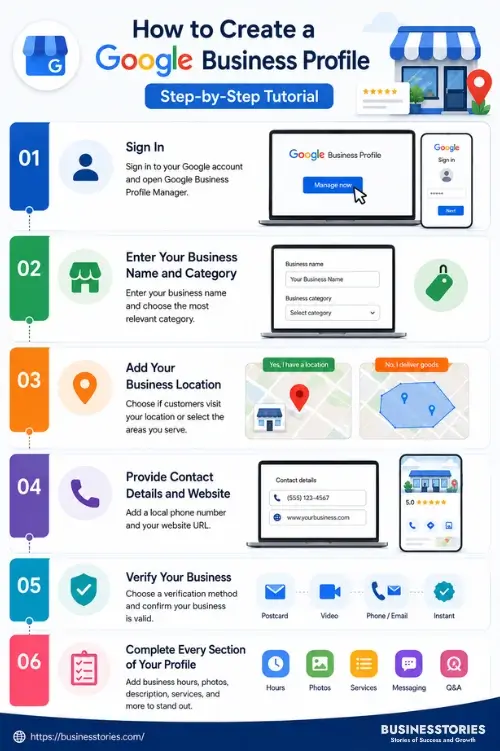
Step 1: Sign In to Google Business Profile Manager
- Open your web browser and go to google.com/business.
- Alternatively, you can simply search for ‘Google Business Profile’ and click the first result.
- Once the page loads, click the ‘Manage now’ button located in the top-right corner.
- You will be prompted to sign in with your Google account.
- If you do not have one yet, click ‘Create account’ and follow the instructions.
- After signing in, you will land on the Google Business Profile Manager dashboard.
- If this is your first time, the dashboard will be empty, and you will see a prominent ‘Add business’ button.
- Click it to begin.
- You can manage multiple business locations from this dashboard, which is useful if you have more than one store.
Step 2: Enter Your Business Name and Category
- The next screen asks for your business name.
- Type your exact business name as it appears in the real world—do not add extra keywords or location names unless they are part of your legal business name.
- Google strictly prohibits keyword stuffing in business names, and violating this rule can lead to suspension of your profile.
- After entering your name, you will be asked to choose a primary business category.
- Choose the category that best describes your main offering, as previously stated. For example, a bakery that specializes in wedding cakes should select ‘Wedding Bakery’ rather than just ‘Bakery.’
- You can add more categories later, but your primary category is the most important for ranking purposes.
- Take a moment to browse through the available options because Google’s category list is extensive and constantly updated.
Step 3: Add Your Business Location
- Now you need to decide whether customers can visit your physical location.
- If you have a storefront, office, or any location where customers come to you, select ‘Yes’ and enter your complete address.
- This address will be visible on your profile and on Google Maps.
- Make sure every detail is correct, including the postal code, because Google will use this information to send you a verification postcard if video verification is not applicable.
- On the other hand, if you are a service-area business (such as a plumber, electrician, or mobile dog groomer who visits customers at their locations), select ‘No’ and instead define the geographic areas you serve.
- You can specify multiple cities, postal codes, or even draw a custom service area.
- This distinction matters greatly because it affects how your business appears in local searches.
Step 4: Provide Contact Details and Website
- After setting your location, Google asks for your phone number and website URL.
- Always use a local phone number with your area code, not a toll-free number, because local numbers help reinforce your geographic relevance.
- For the website field, enter your business’s homepage URL.
- If you do not have a website yet, Google gives you the option to create a free basic website based on your profile information.
- This can be a wonderful starting point for brand-new businesses.
- However, for long-term SEO benefits, we recommend building your own dedicated website as soon as possible.
- Furthermore, double-check every digit of your phone number and every character of your URL—small typos here can cost you potential customers.
Step 5: Verify Your Business
- Verification is the most important step and also the one where beginners often stumble.
- Google needs to confirm that your business genuinely exists at the address you provided.
- The most common method is postcard verification: Google mails a postcard to your business address containing a five-digit verification code.
- Once you receive it (usually within 5 to 14 days), log back into your profile, enter the code, and your profile will become live.
- However, Google has increasingly been using video verification, where you record a short video showing your business location, signage, and occasionally your equipment or inventory.
- In some cases, you may also qualify for phone, email, or instant verification.
- Do not skip verification. Without it, your profile will not appear in search results.
- Furthermore, resist the urge to make changes to your profile while waiting for the verification code, as such actions can sometimes reset the process.
Step 6: Complete Every Section of Your Profile
- Once verified, continue beyond the basics. Fill out every available field.
- Add your business hours, including special hours for holidays.
- Write a compelling business description (up to 750 characters) that includes your main services and what sets you apart.
- Upload 10-15 high-quality photos that cover your exterior, interior, products, team, and any certifications.
- Additionally, add your services or products using the built-in editor, which lets you list items with names, descriptions, and prices.
- Enable the messaging feature so customers can contact you directly from the search results.
- Set up a question and answer section with commonly asked questions and their answers.
Businesses that complete every section of their profile consistently outperform those with partial profiles. In fact, Google itself has stated that complete profiles rank higher and get more engagement. This is the point where you can truly separate yourself from competitors who only fill out the minimum required fields.
Optimizing Your Google Business Profile for Maximum Visibility
Creating a profile is one thing; optimizing it for search visibility is another. In this section, we cover advanced strategies that help your profile rank higher in local searches. To begin with, keywords play a vital role inside your business description.
Research the terms customers in your area use when searching for your services. For instance, a dentist in Mumbai might naturally use phrases like “best dental clinic in Bandra” or “affordable teeth whitening in Mumbai” in their description. However, avoid overstuffing keywords because Google penalizes profiles that look spammy.
Publish Google Posts
Next, be sure to publish Google Posts regularly. These are short updates. Similar to social media posts, that appear directly on your profile. You can share offers, events, new products, or helpful tips. According to a study by Whitespark, businesses that post weekly updates see a measurable increase in profile views and direction requests. Moreover, respond to every customer review promptly. Both positive and negative.
Thank happy customers and address unhappy ones professionally. Review responses to signal to Google that you are an active and engaged business, which can positively influence your ranking. Another powerful tactic is to enable and populate the Products and Services sections thoroughly.
These features allow you to showcase exactly what you offer with descriptions and pricing, adding rich content to your profile that Google can index. Additionally, focus on generating fresh reviews consistently. Do not ask for reviews in bulk; instead, create a simple system where you request a review from every satisfied customer.
You can share your Google review link directly via SMS or email after a purchase or service. A steady stream of recent reviews signals relevance and trustworthiness. Another underutilized feature is the Q&A section. Populate it proactively with frequently asked questions, and monitor it regularly to answer new ones.
Finally, ensure your business name, address, and phone number (collectively called NAP) are identical across all online directories, social media profiles, and your website. Consistency builds trust with Google’s algorithm and prevents confusion that can hurt your ranking.
Common Mistakes to Avoid When Setting Up Your Profile
Even well-intentioned business owners make mistakes when setting up their Google Business Profile. Knowing these pitfalls in advance can save you from frustration and potential profile suspensions.
The first common mistake is:
choosing the wrong business category. As we discussed earlier, picking a broad or irrelevant category reduces your chances of appearing in relevant searches. Take the time to scroll through all available options before deciding.
Second:
Frequent error is creating duplicate profiles for the same business location. Sometimes business owners forget they already created a profile and start a new one, or previous employees set one up without informing the current team.
Multiple profiles for the same location confuse Google and can split your reviews. Instead, always search for your business on Google Maps first to check if a profile already exists. If it does, claim it rather than creating a new one.
Third:
Many people neglect their profile after the initial setup. A stagnant profile with outdated hours, no new photos, and no responses to reviews signals to both Google and customers that the business is unmanaged. We recommend scheduling a monthly review of your profile to keep it fresh.
Fourth:
Avoid using a P.O. Box address or a virtual office that you do not actually operate from. Google requires a genuine physical address where customers can visit during business hours (for storefront businesses) or where you actually base your service operations. Using a fake or shared address can lead to profile suspension.
Finally, do not ignore Google’s guidelines around review solicitation.
Specifically, avoid offering incentives for reviews, posting fake reviews, or setting up a review station where customers leave reviews from the same IP address.
These actions violate Google’s policies and can lead to the removal of all your reviews. By steering clear of these common errors, you set a strong foundation for long-term success.
How to Maintain and Grow Your Profile Over Time
Your Google Business Profile is not a one-time setup. Instead, consider it a living asset that needs regular attention. To begin with, update your business hours whenever they change, including holiday closures and special events.
Nothing frustrates a customer more than driving to a business that is unexpectedly closed. Google now lets you set special hours for holidays well in advance, so use this feature proactively.
Furthermore, add new photos regularly. Businesses that upload fresh images at least once a month signal to Google that their profile is current. Customer-uploaded photos also count toward this freshness factor, so encourage happy customers to share their pictures.
Dashboard View
Another smart practice is to use the Insights tab inside your dashboard. This free analytics tool shows you exactly how customers find your profile. Whether through direct searches for your business name or discovery searches for your services.
It also reveals what keywords triggered your profile and how many people called you, requested directions, or visited your website. Use this data to refine your description and posts over time.
For example, if you notice that a specific service keyword drives the most profile views, create a Google Post highlighting that service.
Additionally, consider integrating your Google Business Profile with other Google tools. Link it with Google Ads to run Local Services Ads that appear at the very top of search results. Connect it with Google Search Console to understand how your website and profile work together.
Above all, make profile management a monthly habit.
Set a calendar reminder to check reviews, reply to questions, and upload at least two new photos. This small investment of time pays enormous dividends in local visibility and customer trust. As your business grows, you can also add multiple managers to the profile so that team members can share the responsibility of keeping it updated.
Conclusion: Your Free Path to Local Business Growth
Learning how to create a Google Business Profile is one of the most valuable skills any small business owner can acquire, and as we have shown, it costs absolutely nothing. Throughout this guide, we walked through the entire process. From understanding what a Google Business Profile is and why it matters to the detailed step-by-step setup, through to advanced optimization strategies and long-term maintenance.
The key takeaways are simple: sign up with accurate information. Verify your profile promptly. Complete every section thoroughly, and keep your profile fresh with regular updates, posts, and review responses.
Moreover, remember that the process is not a one-time task. The businesses that win in local search are those that treat their Google Business Profile as an ongoing marketing channel. Regular photos, weekly posts, prompt review responses, and seasonal updates all contribute to higher rankings and more customer trust.
The data consistently shows that complete, active profiles dominate the Local Pack and attract more calls, clicks, and visits. If you have not yet created your Google Business Profile, go to google.com/business right now and start the process.
If you already have a profile, open your dashboard today to check for any missing sections, then fill them in. Your future customers are searching for what you offer right this moment. Make sure they find you first.
FAQs About How to Create a Google Business Profile for Free
Q1: How to create a Google Business Profile?
Setting up your basic Google Business Profile takes around 15 to 20 minutes. However, postcard verification can add 5 to 14 days, while video verification may be faster.
Q2: Can I create a Google Business Profile without a physical store?
Yes, you absolutely can. Service-area businesses such as plumbers and electricians can create a free Google Business Profile and hide their home address while listing the cities they serve.
Q3: Is Google Business Profile really free to set up and use?
Yes, creating and managing a Google Business Profile is completely free. Google does not charge any fee for listing, posting updates, uploading photos, or responding to customer reviews.
Q4: How do I verify my Google Business Profile without a postcard?
Google offers several verification methods, including video verification, phone calls, and email. Available options depend on your business category, location, and Google’s current verification policies.
Q5: What should I include in my Google Business Profile description?
Include your main services, what makes your business unique, your location relevance, and a call to action. Keep it under 750 characters and naturally weave in relevant local keywords for better ranking.

Tabassum Shaik is an Author, Researcher, and SEO Specialist with over 8 years of experience creating informative content on business, startups, entrepreneurship, marketing, technology, and digital trends. She specializes in researching industry trends and transforming complex topics into practical, easy-to-understand insights. Her goal is to help readers stay informed, learn new ideas, and make better business decisions.