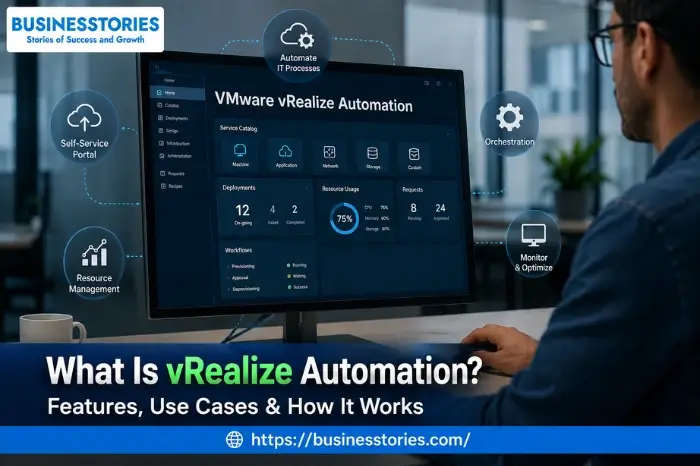
IT teams waste a lot of time on manual tasks. They wait days for a new server. They file ticket after ticket, too. And they repeat the same steps over and over. vRealize Automation fixes all of these issues.
So, what is vRealize Automation? It is a cloud tool from VMware. It helps IT teams deliver apps, services, and servers—fast and without manual work. Today, it also goes by the name VMware Aria Automation. But most teams still call it vRA.
Think of it as a self-service system for your IT setup. Users can ask for what they need on their own. Admins keep control through clear rules and policies. And the whole thing runs by itself, no manual steps needed.
In this guide, you will learn what vRealize Automation is, how it works, and what it can do. You will also see real use cases and key features. So, whether you are an IT admin, a DevOps engineer, or a business owner, this guide is for you.
What Is vRealize Automation?
vRealize Automation (vRA) is VMware’s cloud tool for IT delivery and control. It started as vCloud Automation Center (VCAC). Then VMware bought a company called DynamicOps in 2012. By 2014, the tool got a new name—vRealize Automation. Today, it is also known as VMware Aria Automation.
At its core, vRA does three key things. First, it lets users ask for IT tools on their own. Second, it doesn’t require human assistance to set up those tools. Third, it keeps all actions within company rules and policies.
Furthermore, vRA is compatible with many cloud platforms. It supports VMware vSphere, AWS, Azure, and Google Cloud. You can build one template and send it to any cloud you like. This “build once, use anywhere” approach saves teams a huge amount of time.
In addition, vRA is cloud-agnostic. That means your team writes one YAML file and deploys it to any cloud. There is no need to write new code for every platform. So, large teams love it for their hybrid cloud plans.
Furthermore, vRA works well with tools your team may already use. Ansible, Puppet, Terraform, Chef, and SaltStack all fit in. Therefore, you do not need to change your whole workflow to use vRA.
Key Features of vRealize Automation
vRealize Automation has many built-in tools. Each one is made to save time, cut errors, and give teams more power. So, let us walk through the most useful ones.
Self-Service Catalog
The self-service catalog is where users start. They log in and pick what they need from a menu. For example, they might choose a virtual machine, a database, or a web app. Then the system sets it all up using pre-approved templates.
As a result, IT teams save hours each week. Rather than processing each request manually, admins only need to set up the catalog once. Thereafter, users help themselves. It is fast, simple, and easy for anyone to use.
Policy-Based Governance
With vRA, admins create rules for what users can do. These rules are called policies. For example, a policy might limit a developer to a small virtual machine. Or it might set a rule that all resources stop after 24 hours.
Therefore, IT stays in control without slowing things down. Users still move fast. But the business stays safe, secure, and within budget. This approach provides an excellent balance for any IT team.
Infrastructure as Code (IaC)
vRA supports Infrastructure as Code. This means you write your IT setup as a YAML file. The file lists the machines, networks, and apps you want. Then vRA reads the file and builds it all for you.
First, this process makes your setup repeatable. Run the same file many times, and you get the same result. Second, you can save your setup in version control, just like software code. This allows you to monitor changes and reverse them when necessary.
Multi-Cloud and Hybrid Cloud Support
Most businesses use more than one cloud. vRA is designed for these scenarios. It links to VMware vSphere, AWS, Azure, and Google Cloud from one screen. So, your team deploys to any cloud in one place.
Furthermore, this multi-cloud support means you can choose any vendor. If your needs change, you can move workloads easily. vRA manages the cloud details, so your team doesn’t have to learn each platform.
CI/CD Pipeline Automation with Code Stream
vRA includes a module called Code Stream. It helps software teams use continuous integration and delivery (CI/CD). So, teams can build, test, and ship software faster using automated pipelines.
Moreover, Code Stream links to your developer tools. It automates the full release process. Therefore, less manual work means fewer errors and faster launches for your products.
Action-Based Extensibility (ABX)
vRA lets developers add custom scripts to its workflows. This is called Action-Based Extensibility, or ABX. You can write code in either Python or Node.js. These scripts then run as part of your IT workflows.
Additionally, ABX excels in connecting vRA to external tools. So, instead of complex workarounds, your team builds exactly what it needs in a clean, easy way.
Kubernetes and Container Support
Many modern apps run in containers. vRA supports Kubernetes, which is the top tool for container control. Teams can set up and manage Kubernetes clusters right inside vRA. So, you can handle both old VMs and new container apps from one place.
How Does vRealize Automation Work?
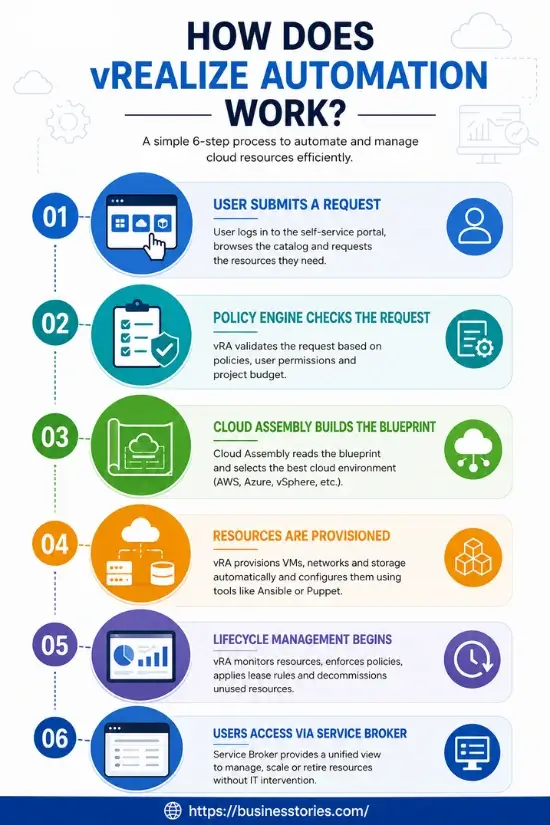
Understanding how vRA operates enables you to maximize its potential. The process follows a clear sequence from beginning to end. So, let us go through each one.
Step 1 — User Submits a Request
A user logs into the vRA self-service portal. They browse the catalog and pick what they need. For example, they might request a web app with three servers and a load balancer.
Step 2 — Policy Engine Checks the Request
Next, vRA checks the request against the admin rules. It looks at the user’s access level. It also checks the project budget. If all checks are successful, the process proceeds immediately.
Step 3 — Cloud Assembly Builds the Blueprint
Then, vRA’s Cloud Assembly module takes over. It reads the YAML blueprint. Thereafter, it picks the best cloud for the job — AWS, Azure, or vSphere. The choice is based on the project settings.
Step 4 — Resources Are Provisioned
vRA then sends the setup instructions to the selected cloud. The VMs, networks, and storage are built automatically. Furthermore, tools like Ansible or Puppet can run at this point to install software and set configs.
Step 5 — Lifecycle Management Begins
Once the resources are live, vRA keeps watch over them. It tracks usage. It also applies lease rules and shuts things down when no longer needed. So, you avoid waste and keep your cloud costs low.
Step 6—Users Access via Service Broker
Finally, the Service Broker module gives users one place to see and manage all their resources. They can view what is running, ask for more, or remove old items — all without calling IT.
Real-World Use Cases of vRealize Automation
Now, let us look at how real teams use vRA every day.
Use Case 1 — VM Lifecycle Management
This is the most common use. Many companies use vRA to create, manage, and remove virtual machines. For example, a large university in Turkey had to handle five to ten VM requests every day. Before vRA, each request took hours to fill. After setup, the process became nearly instant.
Use Case 2 — DevOps Self-Service for Developers
Software teams use vRA to provide developers with their workspaces. Developers can spin up a test space, run their code, and then tear it down—all on their own. Therefore, IT teams are free to focus on more important tasks.
Use Case 3 — Multi-Cloud Provisioning
Large companies use vRA as their one control point for AWS, Azure, and VMware workloads. Instead of using three different tools, they manage all the clouds on one screen. This leads to reduced training costs and faster work completion.
Use Case 4 — Healthcare App Development
A healthcare company used vRA to let app teams build and test on demand. Teams picked a template, set their options, and had a full setup in minutes. Therefore, waiting time dropped from days to minutes, and apps shipped faster.
Use Case 5 — Compliance and Governance
Banks and health firms use vRA’s policy engine to enforce rules at every step. The company’s security and data rules govern every resource setup. Therefore, audits become much simpler, and human error goes away.
Benefits of Using vRealize Automation
So, why do so many teams choose vRA? Here are the top reasons.
- Speed: Resource delivery drops from days to minutes. Therefore, teams move faster without long approval waits.
- Control: Policy rules mean IT stays in charge. Users obtain what they need, but always within safe limits.
- Cost savings: Lifecycle rules stop unused VMs from running too long. Teams often save 30 to 40 percent on cloud costs after a review.
- Consistency: IaC blueprints provide the same result each time. Therefore, there are no more config errors or manual slip-ups.
- Scalability: vRA grows with your team. Whether you manage ten VMs or ten thousand, it handles the load well.
- DevOps-ready: Support for Terraform, Ansible, Puppet, and CI/CD tools means vRA fits right in from day one.
Conclusion
vRealize Automation is one of the best IT tools for teams who want to move fast and stay in control. It brings self-service, policy rules, multi-cloud support, and DevOps tools into one place. So, whether your team needs faster VM setup, better cloud control, or a full CI/CD pipeline, vRA has you covered.
The platform has come a long way from its early days as vCloud Automation Center. Today, as VMware Aria Automation, it keeps growing with better tools and smarter features. Many large teams in health, finance, and tech rely on it every day.
If your team struggles with slow IT delivery, high cloud costs, or too many manual steps, vRA is worth a look. First, map your current pain points. Next, investigate how the self-service catalog and IaC features can address these issues incrementally.
Furthermore, you do not need to change your whole setup at once. Most teams start small, automating VM requests, and grow from there. So, start today.
Frequently Asked Questions About vRealize Automation
What does vRealize Automation do for IT teams?
vRealize Automation automates IT service delivery. It lets teams set up VMs, apps, and services through a self-service portal—cutting manual work and boosting delivery speed.
Is vRealize Automation the same as VMware Aria Automation?
Yes. VMware renamed vRealize Automation to VMware Aria Automation. Both names refer to the same cloud automation platform from VMware.
What clouds does vRealize Automation support?
vRA works with VMware vSphere, AWS, Azure, and Google Cloud. It offers one control point for multi-cloud setup and management.
How does vRA handle compliance and security policies?
vRA uses a built-in policy engine that checks every request before it is approved. Admins set the rules, and the system enforces them at the point of provisioning.
Can vRealize Automation integrate with DevOps tools?
Yes. vRA works with Ansible, Puppet, Terraform, Chef, and SaltStack. It also includes Code Stream for full CI/CD pipeline control across your teams.

Tabassum Shaik is an Author, Researcher, and SEO Specialist with over 8 years of experience creating informative content on business, startups, entrepreneurship, marketing, technology, and digital trends. She specializes in researching industry trends and transforming complex topics into practical, easy-to-understand insights. Her goal is to help readers stay informed, learn new ideas, and make better business decisions.